
Any hardware device that sends data to the computer, without any input devices, a computer would only be a display device and not allow users to interact with it, much like a TV. To the right is a Logitech trackball mouse, an example of an input device. Below is a full listing of all the different types of computer input devices found on a computer.
Showing posts with label Device Manager. Show all posts
Showing posts with label Device Manager. Show all posts
INPUT DEVICE


Read User's Comments(0)

INPUT DEVICE
Any hardware device that sends data to the computer, without any input devices, a computer would only be a display device and not allow users to interact with it, much like a TV. To the right is a Logitech trackball mouse, an example of an input device. Below is a full listing of all the different types of computer input devices found on a computer.

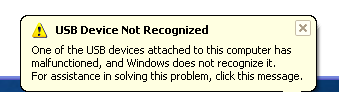
How to Fix USB Device not Recognize in Windows
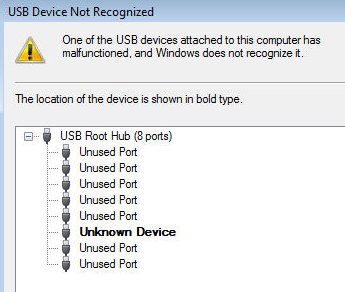
Are you getting a “USB device not recognized” error whenever you plug in a USB mouse, keyboard, or other USB device? I love USB and have 5 ports on my computer so that I can connect my mouse, keyboard, camera, phone, and printer to it all at once! However, last weekend, my computer stopped recognizing my USB devices! The strange thing about it was that the USB ports were not bad because all of my devices were still getting power to them. I could still charge my cell phone without a problem! So I started with the normal fixing methods, including uninstalling the drivers for my devices and reinstalling them. That didn’t work! Next I tried System Restore thinking that maybe I had installed something and it caused a conflict with the USB system drivers. That didn’t work! I read online that in order to fix this problem I should go to Device Manager and uninstall all of the devices under USB Controllers. Restarted the computer, reinstalled the USB drivers, but the problem STILL did not go away! You may also see in Device Manager that the device shows up as an “Unknown Device”. So how did I finally fix the problem? Well, apparently it’s a super simple solution! No need to edit the registry, uninstall drivers, or anything of that sort. Simply UNPLUG YOUR COMPUTER FROM THE POWER SUPPLY. Yes that’s it! Note that this does not mean just turning off your computer because modern computers don’t really turn off when you press the power button as the motherboard still gets power. First to explain, the motherboard is where all of hardware of the computer is connected to, including the USB ports. Sometimes the motherboard needs to be “rebooted” also because something can go wrong, i.e. all your USB ports suddenly stop working. The small microprocessor on the motherboard will reload the drivers and your USB ports should be back to recognizing all devices! So first turn off your computer using Shut Down or pressing the power button and then UNPLUG it from the wall outlet. Let it sit for about a minute and then plug it back in. Hope this helps someone fix that pesky “USB device not recognized” Windows error!
How to Fix USB Device not Recognize in Windows
Are you getting a “USB device not recognized” error whenever you plug in a USB mouse, keyboard, or other USB device? I love USB and have 5 ports on my computer so that I can connect my mouse, keyboard, camera, phone, and printer to it all at once! However, last weekend, my computer stopped recognizing my USB devices! The strange thing about it was that the USB ports were not bad because all of my devices were still getting power to them. I could still charge my cell phone without a problem! So I started with the normal fixing methods, including uninstalling the drivers for my devices and reinstalling them. That didn’t work! Next I tried System Restore thinking that maybe I had installed something and it caused a conflict with the USB system drivers. That didn’t work! I read online that in order to fix this problem I should go to Device Manager and uninstall all of the devices under USB Controllers. Restarted the computer, reinstalled the USB drivers, but the problem STILL did not go away! You may also see in Device Manager that the device shows up as an “Unknown Device”. So how did I finally fix the problem? Well, apparently it’s a super simple solution! No need to edit the registry, uninstall drivers, or anything of that sort. Simply UNPLUG YOUR COMPUTER FROM THE POWER SUPPLY. Yes that’s it! Note that this does not mean just turning off your computer because modern computers don’t really turn off when you press the power button as the motherboard still gets power. First to explain, the motherboard is where all of hardware of the computer is connected to, including the USB ports. Sometimes the motherboard needs to be “rebooted” also because something can go wrong, i.e. all your USB ports suddenly stop working. The small microprocessor on the motherboard will reload the drivers and your USB ports should be back to recognizing all devices! So first turn off your computer using Shut Down or pressing the power button and then UNPLUG it from the wall outlet. Let it sit for about a minute and then plug it back in. Hope this helps someone fix that pesky “USB device not recognized” Windows error!
How RAM Works

RAM is the best known form of computer memory and easy to upgrade. See more computer hardware pictures.
Random access memory (RAM) is the best known form of computer memory. RAM is considered "random access" because you can access any memory cell directly if you know the row and column that intersect at that cell.
The opposite of RAM is serial access memory (SAM). SAM stores data as a series of memory cells that can only be accessed sequentially (like a cassette tape). If the data is not in the current location, each memory cell is checked until the needed data is found. SAM works very well for memory buffers, where the data is normally stored in the order in which it will be used (a good example is the texture buffer memory on a video card). RAM data, on the other hand, can be accessed in any order.
Similar to a microprocessor, a memory chip is an integrated circuit(IC) made of millions of transistors and capacitors. In the most common form of computer memory, dynamic random access memory (DRAM), a transistor and a capacitor are paired to create amemory cell, which represents a single bit of data. The capacitor holds the bit of information -- a 0 or a 1 (see How Bits and Bytes Work for information on bits). The transistor acts as a switch that lets the control circuitry on the memory chip read the capacitor or change its state.
More on RAM |
A capacitor is like a small bucket that is able to store electrons. To store a 1 in the memory cell, the bucket is filled with electrons. To store a 0, it is emptied. The problem with the capacitor's bucket is that it has a leak. In a matter of a few milliseconds a full bucket becomes empty. Therefore, for dynamic memory to work, either the CPU or the memory controller has to come along and recharge all of the capacitors holding a 1 before they discharge. To do this, the mem ory controller reads the memory and then writes it right back. This refresh operation happens automatically thousands of times per second.
The capacitor in a dynamic RAM memory cell is like a leaky bucket.
This refresh operation is where dynamic RAM gets its name. Dynamic RAM has to be dynamically refreshed all of the time or it forgets what it is holding. The downside of all of this refreshing is that it takes time and slows down the memory.
In this article, you'll learn all about what RAM is, what kind you should buy and how to install it. See the next page to learn more about dynamic RAM and memory cells.
How RAM Works
RAM is the best known form of computer memory and easy to upgrade. See more computer hardware pictures.
Random access memory (RAM) is the best known form of computer memory. RAM is considered "random access" because you can access any memory cell directly if you know the row and column that intersect at that cell.
The opposite of RAM is serial access memory (SAM). SAM stores data as a series of memory cells that can only be accessed sequentially (like a cassette tape). If the data is not in the current location, each memory cell is checked until the needed data is found. SAM works very well for memory buffers, where the data is normally stored in the order in which it will be used (a good example is the texture buffer memory on a video card). RAM data, on the other hand, can be accessed in any order.
Similar to a microprocessor, a memory chip is an integrated circuit(IC) made of millions of transistors and capacitors. In the most common form of computer memory, dynamic random access memory (DRAM), a transistor and a capacitor are paired to create amemory cell, which represents a single bit of data. The capacitor holds the bit of information -- a 0 or a 1 (see How Bits and Bytes Work for information on bits). The transistor acts as a switch that lets the control circuitry on the memory chip read the capacitor or change its state.
More on RAM |
A capacitor is like a small bucket that is able to store electrons. To store a 1 in the memory cell, the bucket is filled with electrons. To store a 0, it is emptied. The problem with the capacitor's bucket is that it has a leak. In a matter of a few milliseconds a full bucket becomes empty. Therefore, for dynamic memory to work, either the CPU or the memory controller has to come along and recharge all of the capacitors holding a 1 before they discharge. To do this, the mem ory controller reads the memory and then writes it right back. This refresh operation happens automatically thousands of times per second.
The capacitor in a dynamic RAM memory cell is like a leaky bucket.
This refresh operation is where dynamic RAM gets its name. Dynamic RAM has to be dynamically refreshed all of the time or it forgets what it is holding. The downside of all of this refreshing is that it takes time and slows down the memory.
In this article, you'll learn all about what RAM is, what kind you should buy and how to install it. See the next page to learn more about dynamic RAM and memory cells.
Task Manager dissable program in Windows XP
Problem: It is due to some kind of virus/ trojan activity which normally disables the task manager.Now due to this problem when ever the user press alt+ctrl+del to launch windows task manager it gives an error saying “Task Manager is being disabled by your administrator”. Solution: To Enable the Disabled Task Manager on your system 1. Press window key+r to show run prompt 2. Follow the following steps
Task Manager dissable program in Windows XP
Problem: It is due to some kind of virus/ trojan activity which normally disables the task manager.Now due to this problem when ever the user press alt+ctrl+del to launch windows task manager it gives an error saying “Task Manager is being disabled by your administrator”. Solution: To Enable the Disabled Task Manager on your system 1. Press window key+r to show run prompt 2. Follow the following steps
Error Message: Task Manager has been dissabled
Click Start, Run and type this command exactly as given below: (better - Copy and paste) Download and run this REG fix and double-click it. HKEY_CURRENT_USER \ Software \ Microsoft \ Windows \ CurrentVersion \ Policies\ System User Configuration / Administrative Templates / System / Ctrl+Alt+Delete Options / Remove Task ManagerMethod 1
Method 2
Method 3
Method 4: Using Group Policy Editor - for Windows XP Professional
Error Message: Task Manager has been dissabled
Click Start, Run and type this command exactly as given below: (better - Copy and paste) Download and run this REG fix and double-click it. HKEY_CURRENT_USER \ Software \ Microsoft \ Windows \ CurrentVersion \ Policies\ System User Configuration / Administrative Templates / System / Ctrl+Alt+Delete Options / Remove Task ManagerMethod 1
Method 2
Method 3
Method 4: Using Group Policy Editor - for Windows XP Professional
Startup Applications List
If you're frustrated with the time it takes your Windows PC to boot and then it seems to be running slowly you may have too many programs running at start-up - and have come to the right place to identify them. This is the original startup programs (as opposed to processes/tasks) list - one of the most comprehensive and most accurate! "Name or Startup Item" in the table below refers to how an entry is displayed in MSConfig, Windows Defender or the registry "Run" keys. "Command or Data" refers to the program the entry runs. For further information on this and how to identify and disable startup programs please visit the Startup Content page. For further information on random startup entries please visit the Startup Info page. For the next few months and foreseeable future I'll be verifying many of the Y, U, N & ? entries via virtual machines. If you can verify/identify those entries with a "?" status (especially hardware specific - such as laptops and motherboards) then please E-mail me (address at bottom of the page) or use the new Message Board. The updates on this page are kindly supported by this website hosting guide. "Status" key: Variables:Last update :- 30th September22152 items listed
Subscribe to:
Comments (Atom)